 Knowledge Base
Authorizations in Thril
Authorizations enable secure collaboration between venues, allowing you to grant and manage permissions for cross-venue operations.
Authorizations in Thril are a powerful tool for enabling trusted collaboration between venues. They allow you to grant another venue permission to view certain data or perform actions on your behalf. Whether you're partnering with another club or enabling cross-venue functionality, this feature ensures your operations stay secure and flexible.
🔍 What Are Authorizations?
Authorizations let you connect with other venues inside the Thril ecosystem and share access safely. You might use this to:
- Let another venue view your memberships
- Allow event organizers to link events to your location
- Coordinate cross-venue programs and collaborations
Once created, an authorization remains active until manually deactivated. You can revoke it at any time, no need to delete and reissue.
🛠️ How to Create a New Authorization
To issue a new authorization:
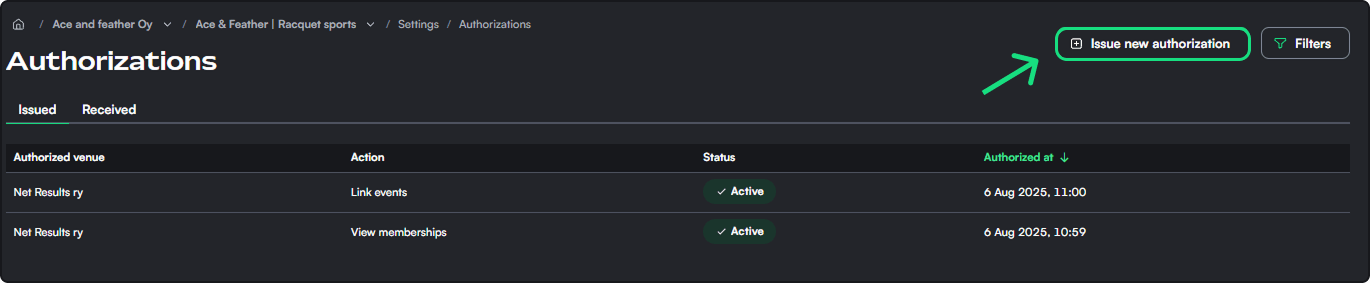
- Navigate to Settings > Authorizations from the left-hand menu.
- Click the green “Issue new authorization” button in the top-right corner.
- In the modal:
- Authorized venue: Start typing a venue name. This field autofills from existing venues or clubs on the Thril platform.
- Please note! That authorizations can only be done on venues that exist on the Thril platform.
- Action: Choose the action you want the other venue to perform on your behalf:
View memberships: Grants them access to your membership listLink events: Allows them to link events to your venue calendar
- Authorization status: Set as
Active(you can switch to Inactive later if needed).
- Authorized venue: Start typing a venue name. This field autofills from existing venues or clubs on the Thril platform.
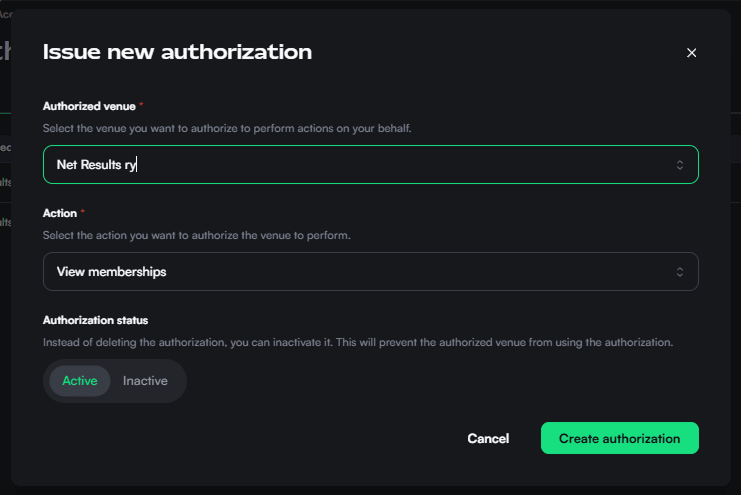
- Click Create authorization.
That’s it! The authorized venue will now see the granted permissions under their own “Authorizations > Received” tab.
🗂️ Managing Issued & Received Authorizations
Your authorizations are split into two tabs:
- Issued: Shows authorizations you’ve given to other venues.
- Received: Shows authorizations other venues have granted to you.
Each authorization displays:
- Authorizing venue
- Action permitted
- Status (Active or Inactive)
- Timestamp for when it was granted
Click on any row to view more details or deactivate the authorization.
🔄 Revoking or Deactivating Access
You can deactivate an authorization at any time without deleting it:
- Go to Authorizations > Issued
- Click the relevant authorization
- Toggle the status from
ActivetoInactive
This immediately disables the other venue’s access until you reactivate it.
🤝 Use Cases
- A partner venue needs to see your memberships for a joint loyalty program
- An organizer wants to link multiple events to your venue without managing your account
- You temporarily allow another venue to coordinate bookings or shared campaigns
Authorizations make these use cases simple, secure, and reversible.
🔐 Built with Security in Mind
Thril ensures that authorizations are:
- Explicit: You define exactly who can do what.
- Transparent: Both parties see active permissions.
- Controlled: You can turn access off anytime with a single click.
Whether you're a local club or a national chain, Thril gives you the collaboration tools you need — with the safeguards you expect.
🧭 Still have questions? Reach out to Thril Support and we’ll help you configure your authorizations properly!