 Knowledge Base
Memberships
Memberships reward loyal customers with exclusive benefits and simplify recurring payments, supporting both one-time and subscription models.
Memberships are a powerful way to reward your loyal customers, offer exclusive benefits, and simplify recurring payments. This guide walks you through the full membership flow—from creating a new one to maintaining it over time.
🧭 Where to Manage Memberships
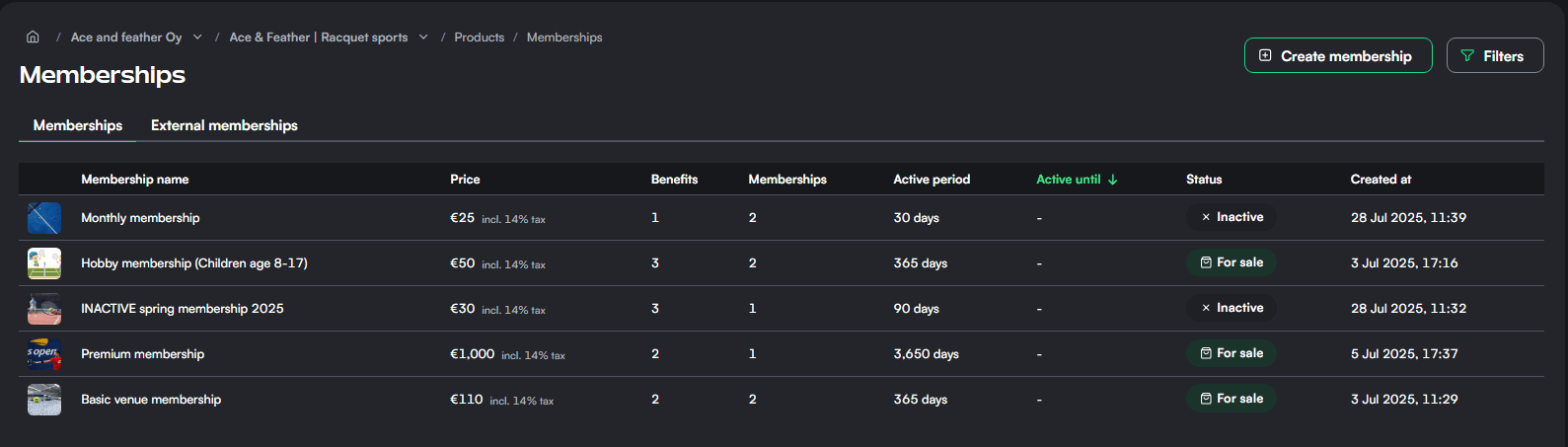
Navigate to the Products section in the left-hand sidebar, and select Memberships. Here, you’ll see a list of all existing memberships, along with:
- Price
- Number of benefits
- Number of members
- Validity period
- Active status
- Creation date
You can also view External memberships if authorized by other venues and clubs.
More about this topic: Authorizations
➕ Creating a New Membership
Click the Create membership button in the top right corner. You’ll be guided through a multi-step form:
1. Basic Details
- Name and Description: This is what customers see in the shop. Make it clear and concise.
- Membership Type:
- One-time purchase: Valid for a set time from the moment of purchase.
- Recurring payment: Automatically renews unless cancelled or unpaid.
- Great for monthly memberships
- Validity Period:
- For one-time purchases: set in days or as fixed date ranges.
- Payment Settings:
- Enforce payments later (optional): Allows the member to join first, pay later. Manual action is needed to mark payment due.
- Allow sports/culture benefit: Tick this if you want the product to be eligible for the Finnish sport/culture benefit.
Add the price and VAT percentage, then continue to benefits.
🎁 Adding Membership Benefits
Benefits can include:
- Reservation discounts:
Choose between
- Percentage (e.g., 20% off)
- Fixed amount (e.g., €5 off) Optionally apply restrictions to:
- Sports
- Courts
- Time slots
- Duration or date range
- Credits: Award a credit balance (e.g., 50 credits = €50 in the venue).
Main article: Credits
You can add multiple benefits to each membership. These will be displayed to customers during purchase.
📩 Confirmation Email and membership activation
On the final step:
- Compose a confirmation email for the membership purchase.
- Add subject, preview text, and message body.
- Optional: Add an image banner for branding.
- Set the status as Active (visible in shop) or Inactive (hidden).
Click Save changes to publish the membership.
🧑🤝🧑 Managing Memberships
After creation, click on any membership to view:
Details Tab
- Name, description, price, tax, validity period, creator details
- Toggle status between Active and Inactive
Benefits Tab
- View all attached benefits, such as discounts or credits
- See exact values and restrictions applied
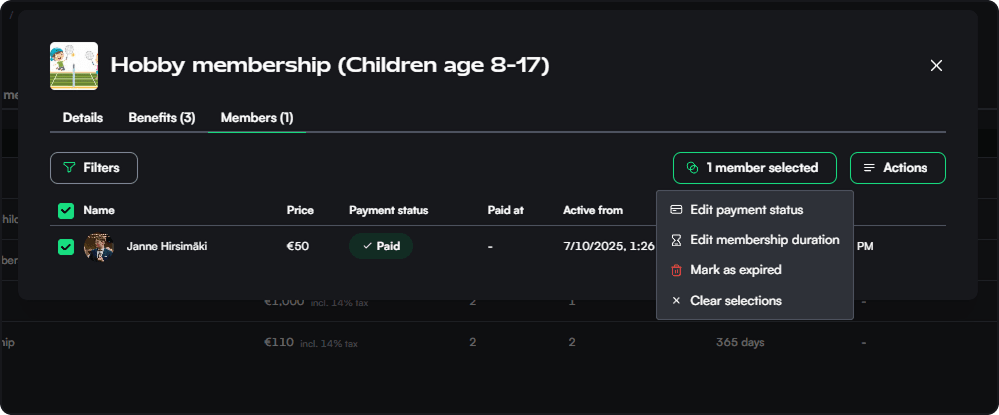
Members Tab
- See each customer who holds the membership
- View their:
- Payment status
- Purchase time
- Validity window
- Use filters to sort or search members
- To sort for deleted memberships
- Perform actions like:
- Export data
- Select members for batch operations
⚙️ Advanced Membership Tools
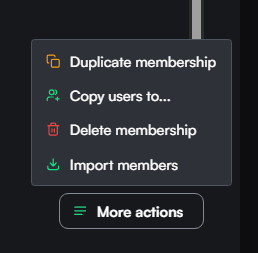
Click More actions in the membership view to:
- Duplicate membership: Clone an existing setup quickly.
- Copy users to...: Move members from one membership to another.
- Delete membership: Remove it permanently.
- ⚠Note! This feature should be used carefully as we are dealing with paid products.
- Import members: Upload a list of members manually.