 Knowledge Base
Getting Started
A step-by-step guide to setting up your venue in Thril, from account creation to pricing, courts, and going live with payments.
Welcome to Thril!
Your all-in-one solution for managing sports venues smarter, faster, and more socially.
Whether you run a padel hall, gym, yoga studio, or municipal court complex, Thril gives you the tools to manage bookings, memberships, customer communication, and payments. Thril is very much customizable to your own needs — dive in and find out how you can make the most out of your venue.
This guide walks you through the onboarding steps you'll complete when setting up your venue in the Thril Admin Portal.
🚀 What You’ll Set Up
The onboarding flow is fast and structured, helping you get your venue up and running in minutes. Here's what to expect:
✅ 1. Create Your Account
You'll start by entering your:
- E-mail address
- **Strong password **(We recommend using over 12 characters including numbers and specials ("!", "?" etc.)
After this you'll need to accept terms and conditions. Read them carefully.
➡️ Click Create account to move forward.
Next up we can start setting up the account with some basic information.
Enter your:
- First and last name
- Phone number
➡️ Click Continue to Thril to move forward.
🏢 2. Company Information
Add the basic details of your business:
- Company name and ID (e.g., Y-tunnus)
- Country and address
- Contact phone and email
💡 Thril uses Stripe to manage your payouts securely. You’ll be guided to set up a Stripe account later.
📍 3. Your First Venue
Every company can have multiple venues, you can start by adding your first one:
- Venue type: Sports Venue or Club/Association
- Venue name and location (copy from company info if the same)
- Postal code and city
- Map location pinning
🎯 This is what your customers will see, so make sure the name and address are accurate.
🕒 4. Opening Hours
Set up your standard and seasonal schedules:
- Define daily hours
- If you are closed on certain weekdays (e.g. open tue-sun, closed on monday) leave the desired weekday empty
This ensures accurate availability in your customer-facing calendar.
🏟️ 5. Courts & Areas
Add all bookable areas:
- Select the sport type for courts (e.g. padel, tennis, gym hall)
- Add number of similar courts
- For different sport types or outside courts create a new court group
📢You can always edit or add more later.
💰 6. Pricing
Set the foundation of your business model:
By creating a pricing rule, you can regulate the prices of your venue according to different scenarios.
💡TIP: Create a pricing rule for every sport/court individually so in the future they are easier to manage.
- Give a name to the pricing rule (Only visible to venue operators and admins)
- Select the courts you want this pricing rule to be applied to
- Select the days of week for the rule
- If you want the pricing rule to be seasonal, you can choose the dates when it will be applied
- If you leave the dates empty, the pricing rule will be applied indefinitely
- Choose the time range for the pricing rule
- Add a new pricing rule
- Select the durations available for customers and set prices for these rules
- ❗Please note that VAT rules will be set later
- Select the durations available for customers and set prices for these rules
🖼️ After these steps your pricing rule should look something like this:
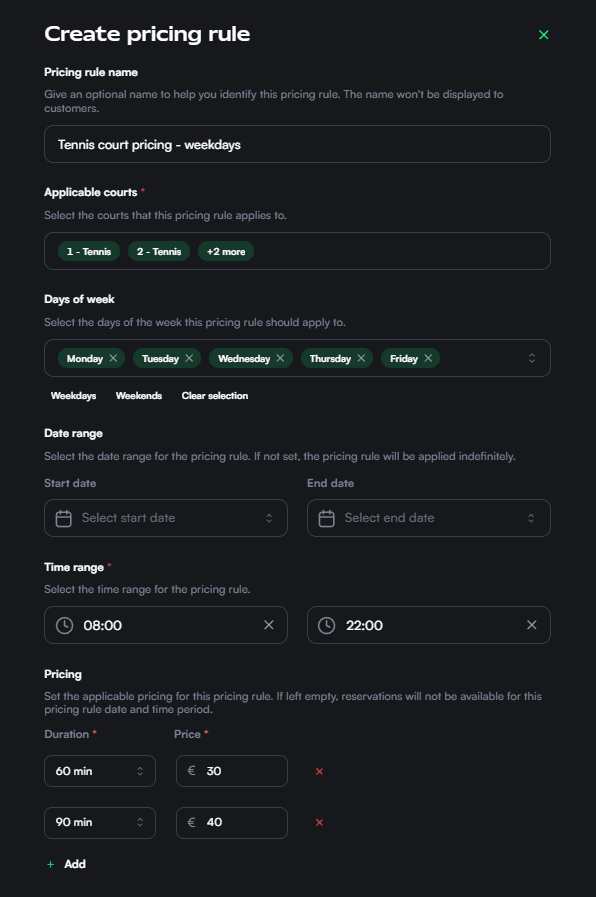
This pricing rule works as follows:
- Will be applied to 4 selected tennis courts indefinitely
- Manages the price of selected courts on weekdays
- Applies the rule from 08:00 to 22:00
- Sets the price for these reservations to 30€ for 60 minutes and 40€ for 90 minutes
📝Please note that the most flexible and comprehensive pricing comes by creating multiple well structured pricing rules.
✨ 7. Features
Tell us what extra services or benefits you offer:
- Parking
- Locker rooms, showers, café, etc.
- Equipment rental and/or service
These details help enhance your venue profile and attract more customers.
🧾 Final Step: Stripe Setup
Before going live, you’ll be prompted to verify a Stripe account. This is required for:
- Receiving payments
- Issuing refunds
- Managing subscriptions or recurring charges
Thousands of businesses trust Stripe for secure, compliant payment processing.
🔐 Visibility & Verification
Your venue will only become visible to customers once:
- The onboarding is complete
- You have verified your email
- Stripe is connected
- Your venue is reviewed and verified by our team
We'll notify you once you're fully live!
💡 Tips for a Smooth Start
- Use clear, consistent naming for venues and courts
- Preview your public venue page after setup
- Invite team members to help manage operations
- Check out the page Setting up admins
- Explore the Knowledge Base for tutorials on bookings, campaigns, memberships, and more
Next you can check these ones out!
Company profile and admin settings
🙋 Need Help?
We’re here for you! Contact or use the in-app chat if you need:
- Help with onboarding
- Troubleshooting technical issues
- Advice on optimizing your venue setup
⚡ Ready to activate your venue and start welcoming bookings? Dive into the next setup steps and watch your facility thrive with Thril.