 Knowledge Base
Courts
Set up and manage your courts to ensure smooth booking, clear facility information, and optimal customer experience at your venue.
Setting up your courts properly ensures players can find, book, and enjoy your facilities smoothly. Whether you're managing a padel paradise or a full-fledged multi-sport complex, Thril makes it easy to create and configure courts to fit your setup perfectly. Here's how to get started.
⚙️ Navigate to Manage Courts
To begin:
- Head over to the left-side menu in your admin dashboard.
- Go to Settings under the Venue settings section.
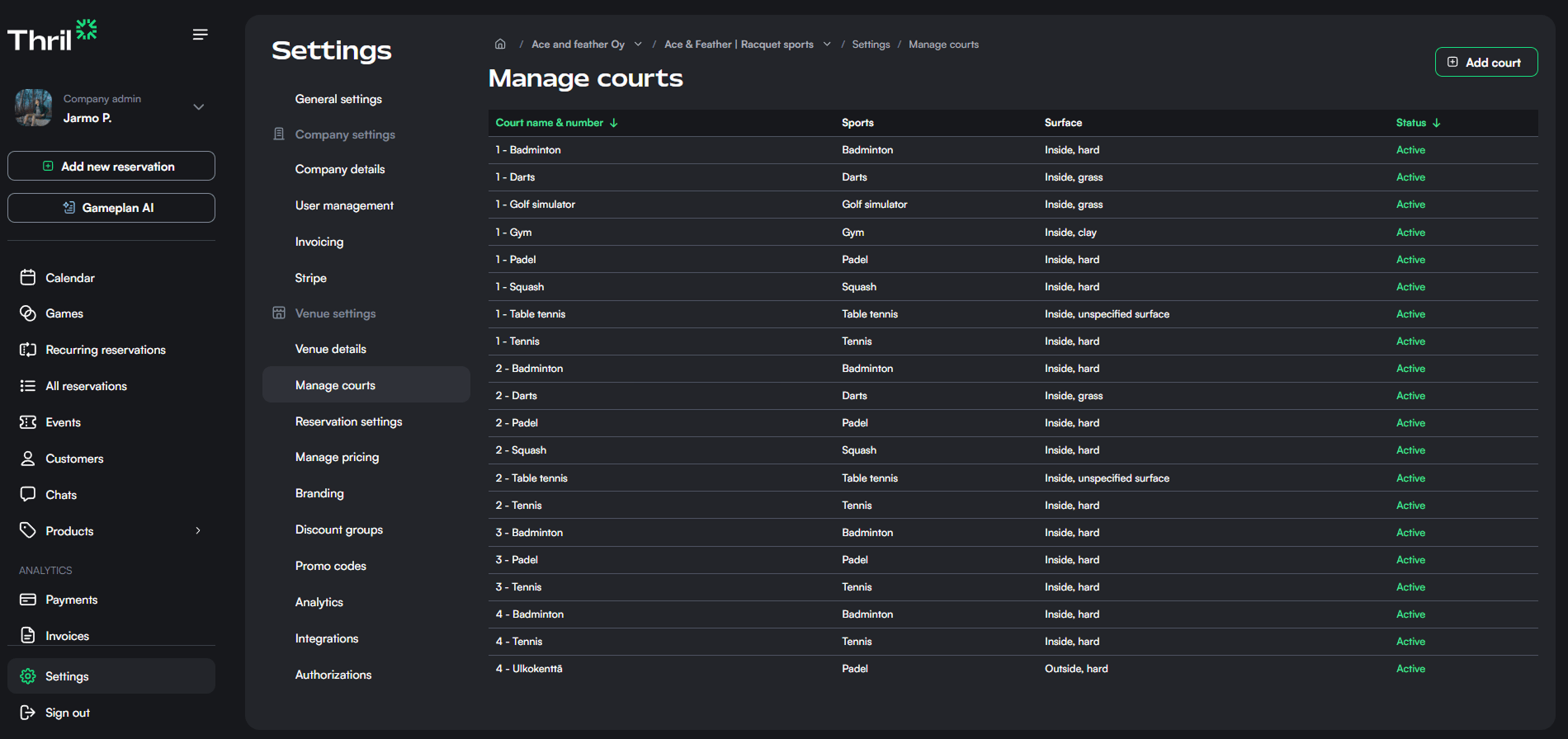
- Click on Manage courts to view, edit, or create new courts for your venue.
Here, you'll see an overview of all your current courts including details like sport type, surface, and activation status.
➕ Add a New Court
To add a court:
- Click the Add court button at the top right.
- A new form will open where you can enter key court details:
- Court name and number (name is optional, number is required)
- Sport types (select one or more from the dropdown)
- Outdoor toggle (flip this if the court is outside)
- Court surface (e.g., hard, grass, clay)
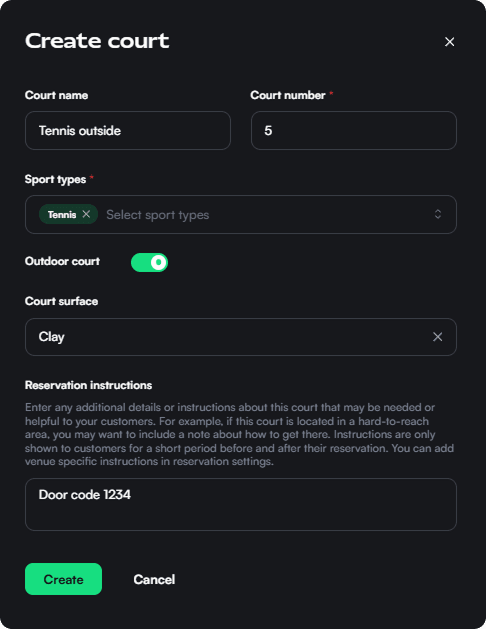
Optionally, you can also add Reservation instructions that are shown to customers before and after their bookings. This is perfect for tricky locations, door codes or special access requirements.
Once you're ready, hit Create to add your court to the system.
✏️ Edit or Deactivate a Court
Need to update an existing court?
- From the Manage courts list, click on any court to open its settings.
- Make your edits: change the sport, adjust the surface, update instructions, or rename it.
- Use the Active/Inactive toggle to control availability. Deactivating a court hides it from public booking but keeps your data intact.
Don’t forget to click Save changes when you’re done.
📌 Tips for Optimal Setup
- Be descriptive: If you name courts (e.g., “Padel 1 - Outdoor”), it helps customers orient themselves faster.
- Use reservation instructions for directions, lock codes, or house rules.
- Keep statuses up to date: Deactivate courts under renovation or temporarily closed to avoid booking conflicts.
With your courts properly set up, you’re all set to receive bookings, host events, and get players playing. For more setup guidance, check out our help docs on pricing, reservation settings, and integrations. 💡
Need help? Reach out to Thril support anytime, we’re here to back your game.
Company profile and admin settings
Configure your company’s details and manage admin rights, ensuring secure and efficient access control for your organization in Thril.
Customers and customer lists
Manage your customer base, add new customers, and build dynamic or static lists to target the right audience for marketing and communication.