 Knowledge Base
Events
The Events section lets admins create, manage, and track both recurring and one-time events, including tournaments and community gatherings.
📋 Events Overview
The Events page displays a list of all created events along with key information:
- Event name & sport type
- Status (Published / Canceled / Draft)
- Date & Time
- Registration Period
- Number of Confirmed Participants
- Visibility (Public or Private)
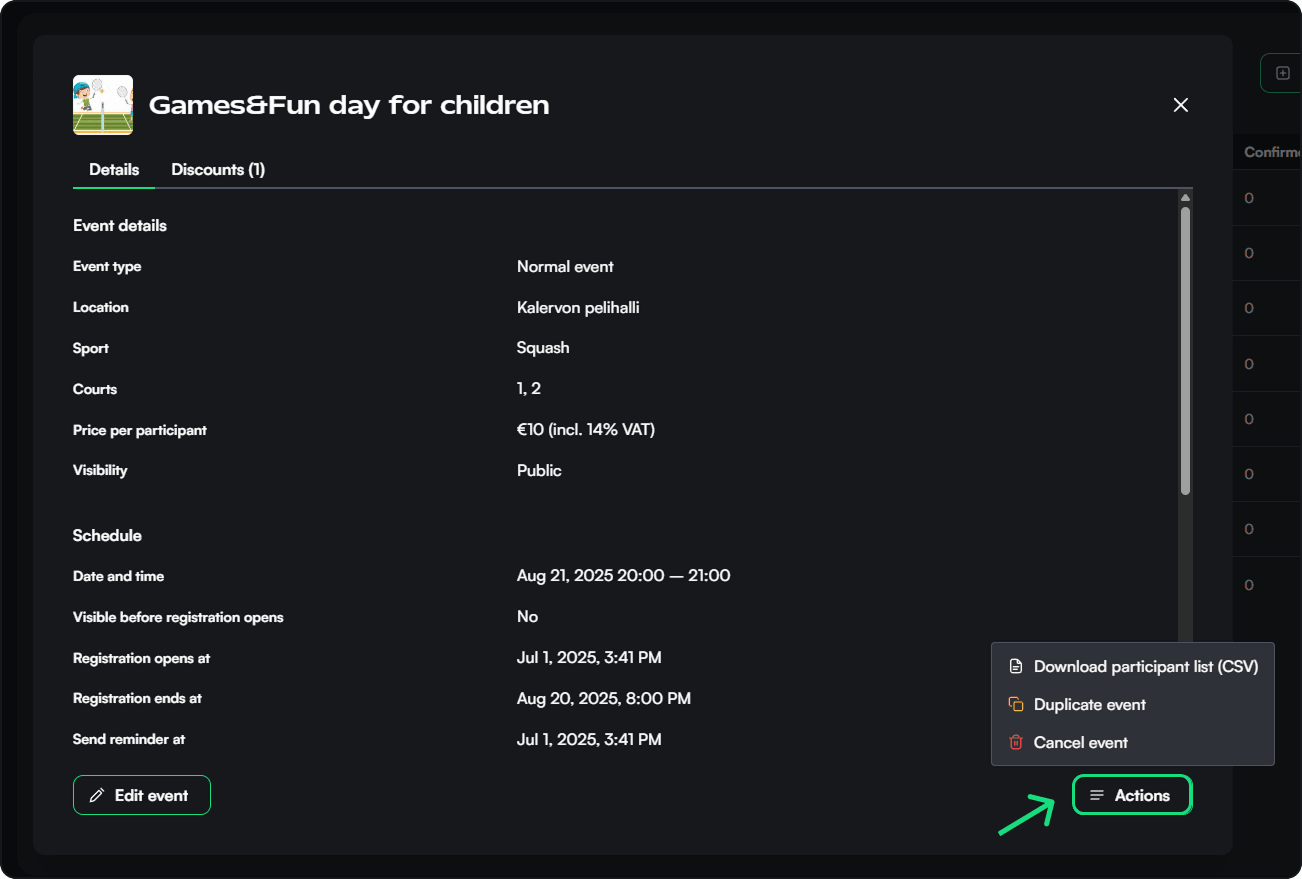
Admins can filter events or click on any event to view detailed information and manage its settings.
👁 Event Details Panel
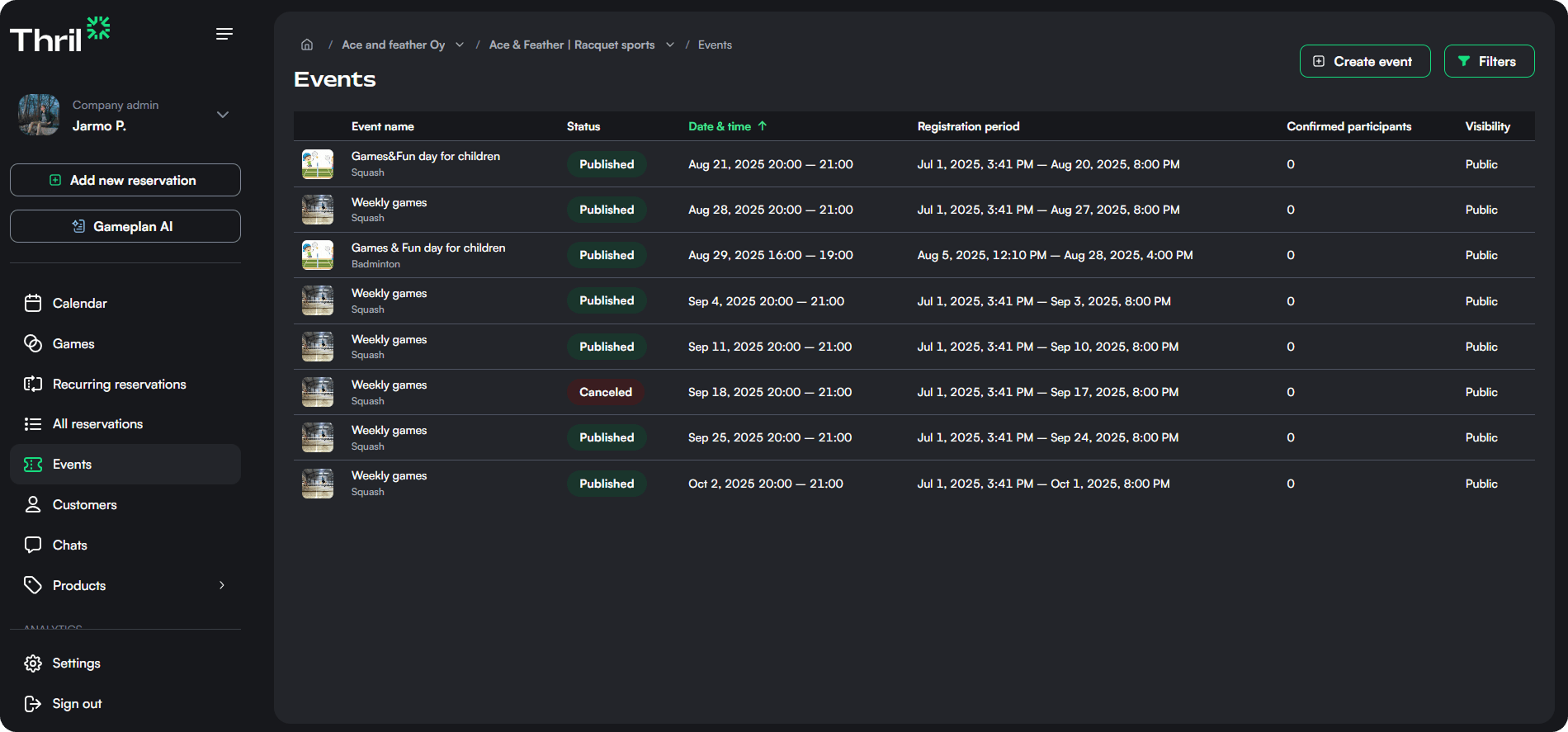
Clicking an event opens a detailed view that includes:
- Event type (Normal or Social)
- Location & Sport
- Price per participant
- Event schedule
- Registration deadlines & reminders
- Description & participation settings
- Discounts (if applicable)
- Event metadata (Creator, creation time, update logs, event ID)
Admins can also:
- Edit the event
- Duplicate the event
- Cancel the event
➕ Creating an Event
Click “Create event” to open a multi-step setup flow. It consists of three sections: 1. Time and location 2. Basic details 3. Participants
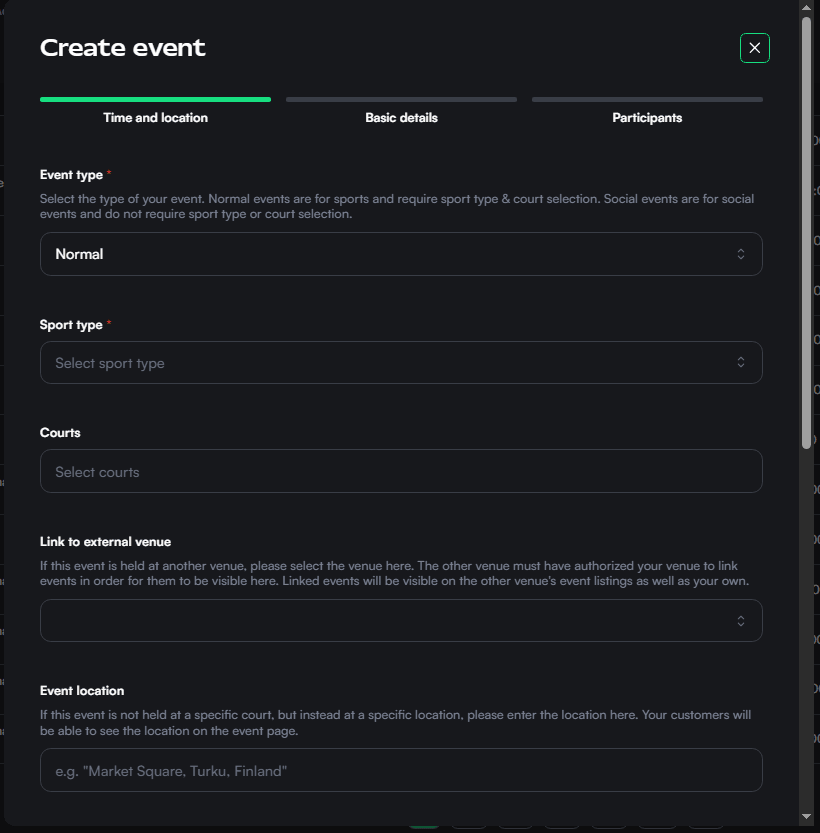
⏱ Step 1: Time and Location
- Event type: Choose between:
- Normal: Requires a sport type and court selection.
- Social: No court or sport requirements. For social gatherings or other non-sport events.
- Sport type and Courts: Mandatory for normal events.
- Link to external venue (optional)
- Useful for cross-venue events
- Event location: Manual input or map selection.
- Schedule: Set start and end times.
- Recurrence: Choose “Only once” or “Recurring.”
- Registration window: Define when registration opens and ends.
✏️ Step 2: Basic Details
- Event name and description
- Participant limits:
- Unrestricted: No upper/lower limit
- Restricted: Set min/max numbers
- Note! that the event will be cancelled if the minimum participant limit isn't filled
- Queuing: Optionally enable waitlisting
- Price per participant: Gross value and VAT configuration
- Discounts: Choose applicable discount groups, or memberships
👥 Step 3: Participants
- Visibility: Public (shown on venue profile) or Private
- Invite participants (search and add existing customers)
- Reminder notification: Set timing (e.g., 24 hours before)
- Event picture: Upload a promo image to appear in public listings
Click “Create event” to publish or save it as a draft.
✅ Best Practices
- Always include a clear event name and description.
- Use registration end times to control last-minute signups.
- Make sure reminders are timed early enough to improve attendance.
- Use visibility settings to control who can find or join the event.
- For competitive events, set participant limits and enable queueing.